Reading files using Python 3 BeautifulSoup

Reading html file using python 3 BeautifulSoup

Considering html file reading, it is useful for data science considering text mining. it can be done easily and accurately using beautifulSoup library in python. when it wants to read full html document bellow method can be used for anywhere.

from bs4 import BeautifulSoup

def read_article(file_name):
    file = open(file_name,"r",encoding="utf-8")
    filedata = file.read()
    soup = BeautifulSoup(filedata, features="html.parser")
    text = soup.get_text()

    return text
print(read_article("anyhtml.html"))

this file_name can be any html document. remember this html file should be in your sourcode file as html file. this should not want any url for read html file. you can use file name and extention only.

Read pdf file using python 3 BeautifulSoup library

typically most time someone are using PyPDF2 for read the pdf document. this may be good some time may not be good. it has some limitation reading pdf file. therefore some pdf file can not be read as it is. due to this reason, it has been used BeautifulSoup library for reading pdf file as it is. following code is showing this new method for every one can be easily used it.

from tika import parser
from bs4 import BeautifulSoup


def read_article(file_name):
     pdf_name = file_name
     raw = parser.from_file(pdf_name, xmlContent=True)['content']
     data = BeautifulSoup(raw, 'lxml')
     value = data.find_all(class_='page')
     full_text = ""
     for loop in value:
       page_1 = loop.text
       full_text = full_text + page_1

     return full_text

print(read_article("anypdf.pdf"))

you can use any pdf file with pdf extention as anypdf.pdf. remember this pdf file and source code should be in same folder.
ionic app run on android using ionic capacitor

ionic capacitor is the api working with android platform. using that capacitor it can be run ionic application on android emulator or any devices. ionic cordova is the same thing can be used for this deployment. but when it is heavy application, most suitable thing is ionic capacitor for deployment.

now see what are the command should be used

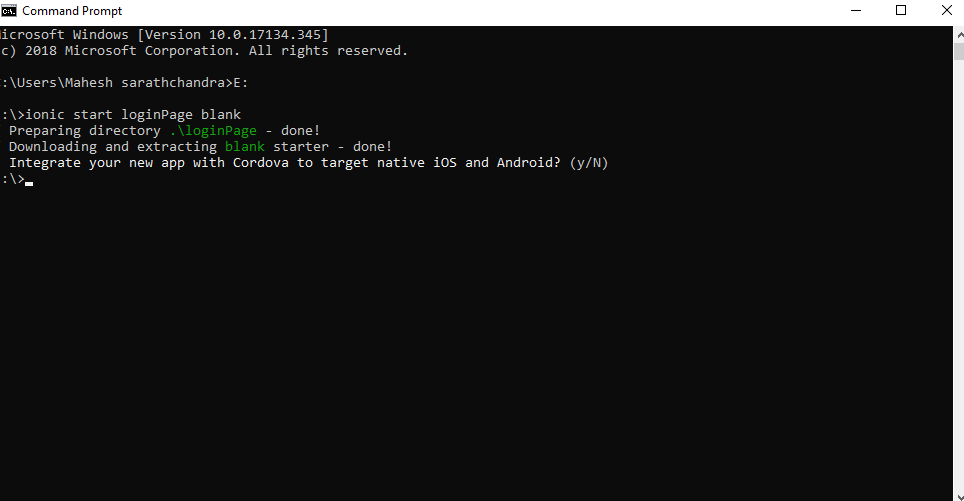
first thing you start ionic application using

ionic start MyIonicProject tutorial type=ionic-angular

that command. MyIonicProject (use your own application name).

after it should be build ionic application once before adding capacitor to that application.

after building  ionic application it can be used  command

ionic capacitor add android 

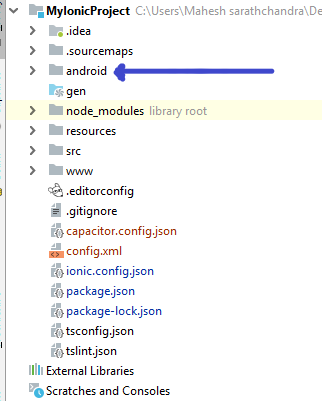
after capacitor plugging  will be added the build file and it can be see android wrappers file  in your ionic application file as bellow.

a

after it should be copied build ionic application to android wrappers file using

ionic capacitor copy android

command it can be done

now it can be run application on android platform

now use

ionic capacitor run android

command to run on android devices.


How to create front end for login session

first we will create ionic capitationScreenshot (47)

after create you will open bootstrap folder using your favorite IDE . i will intelliJ Idea

and open command prompt on your IDE. write “npm i @auth0/angular-jwt “and press entert

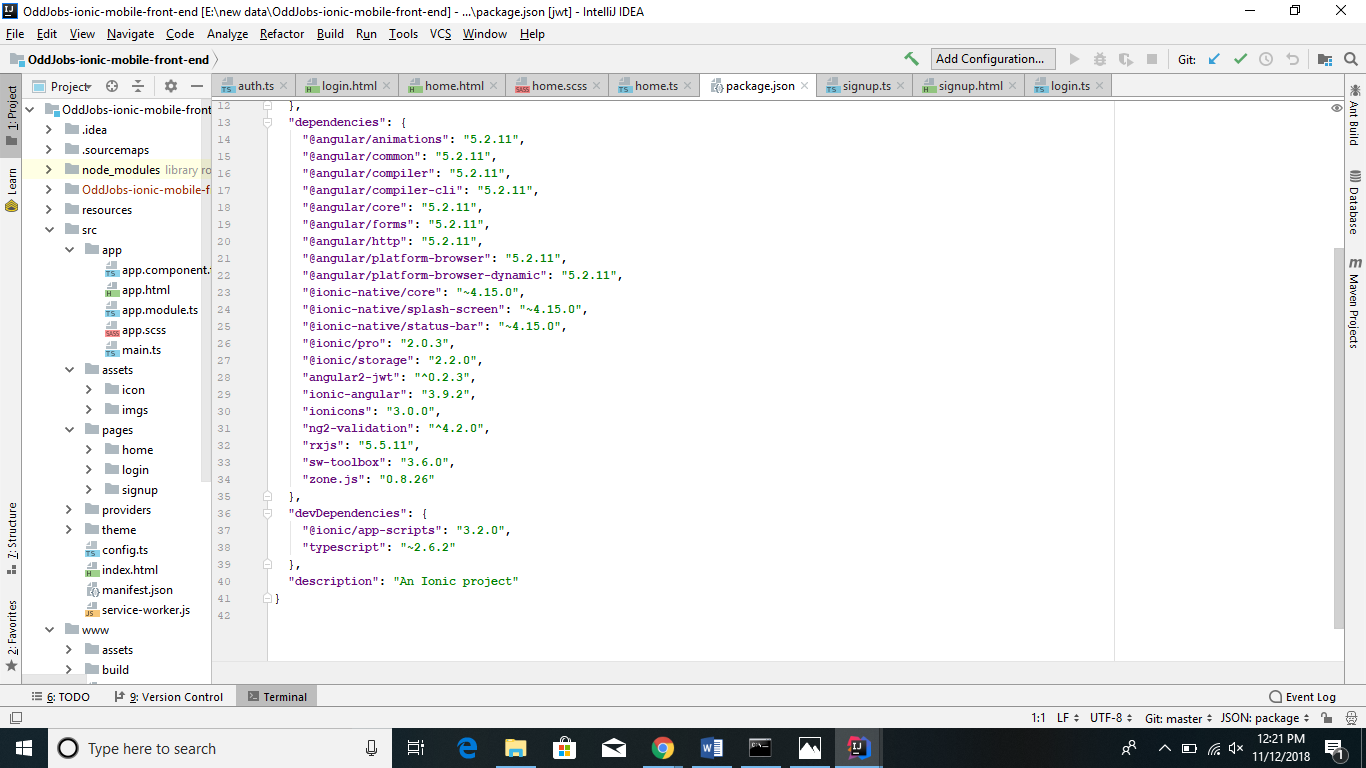
and “npm i ng2-validation” press enter after your jason file should be like bellow

Screenshot (48)

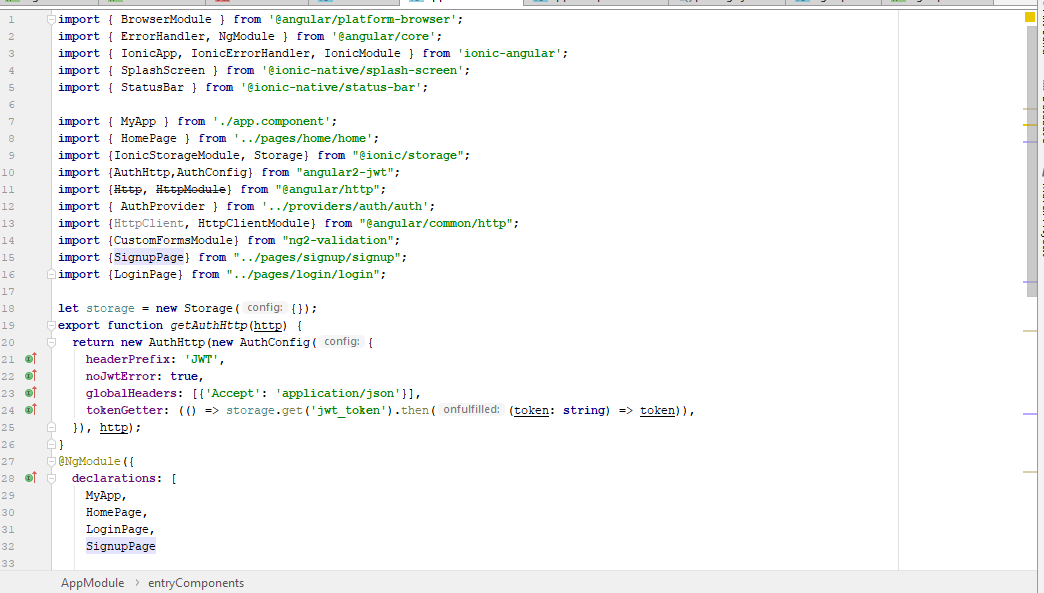
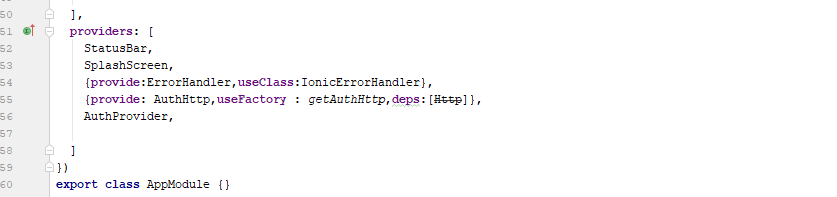
after you will open your app module.ts it should be implemented like bellow

Screenshot (49)

Screenshot (50)

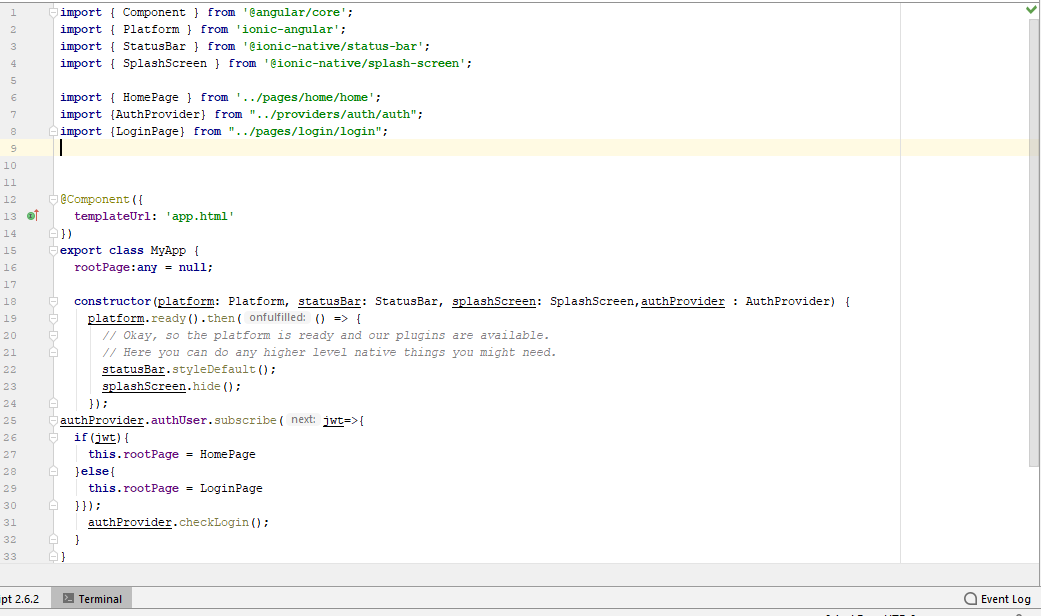
after we consider component ts it should be like bellow

Screenshot (51)

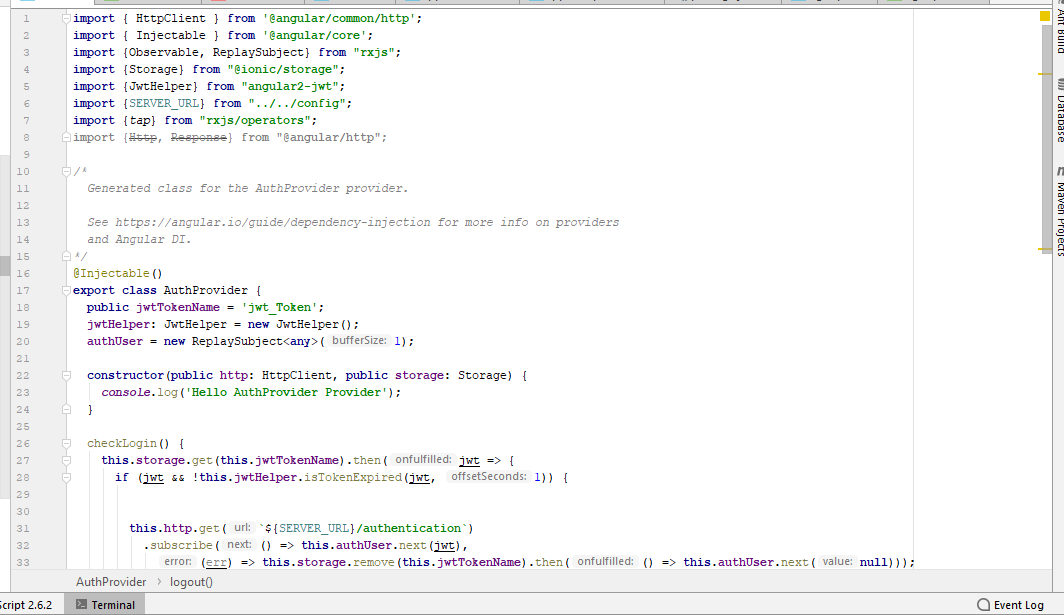
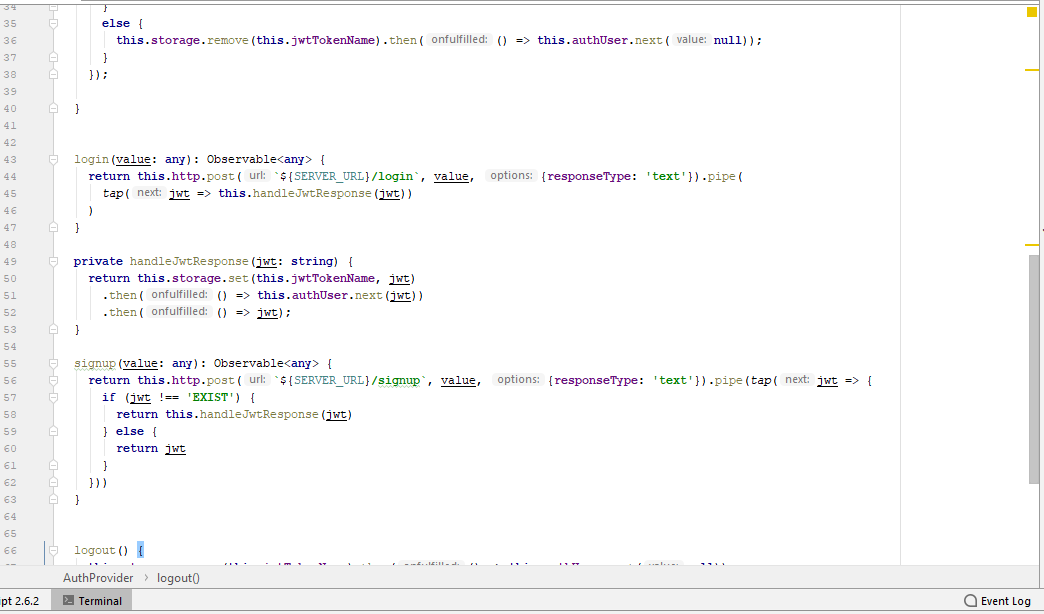
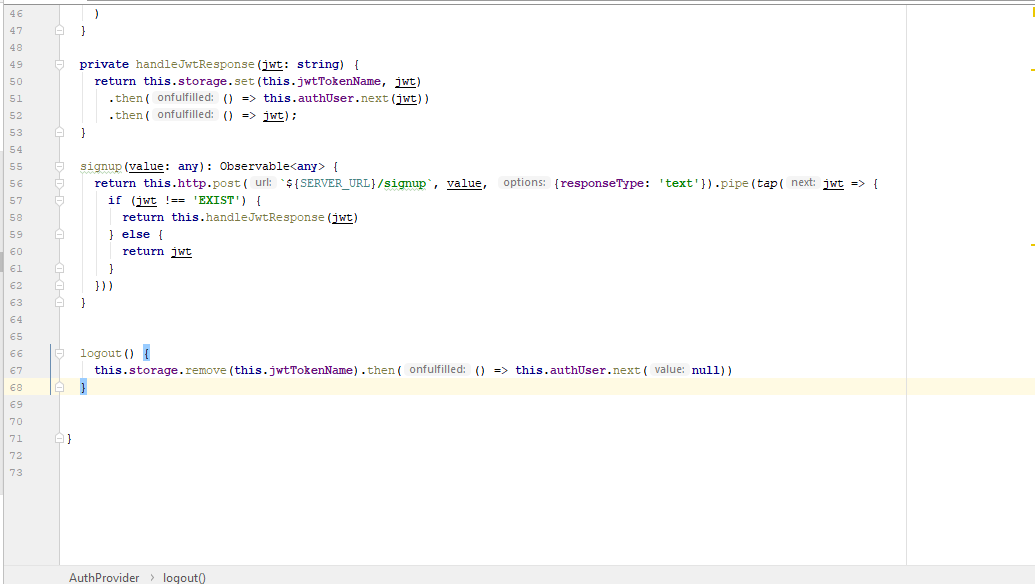
after you will generate provider . Type  “generate provider auth”  on your IDE command     prompt . open your authprovider.ts it should be implemented like bellow

Screenshot (52)

Screenshot (53)

Screenshot (54)

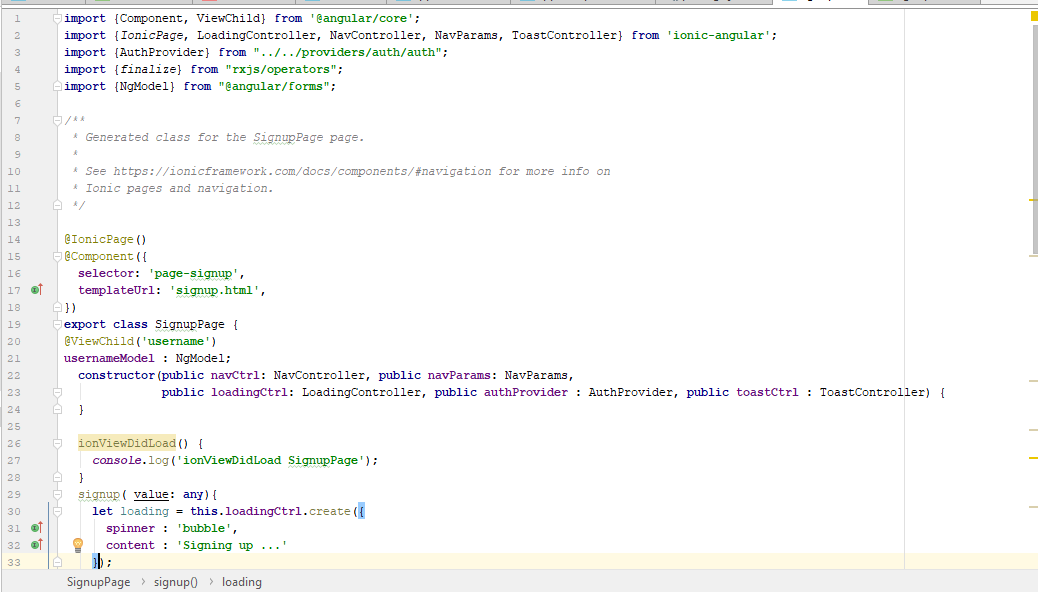
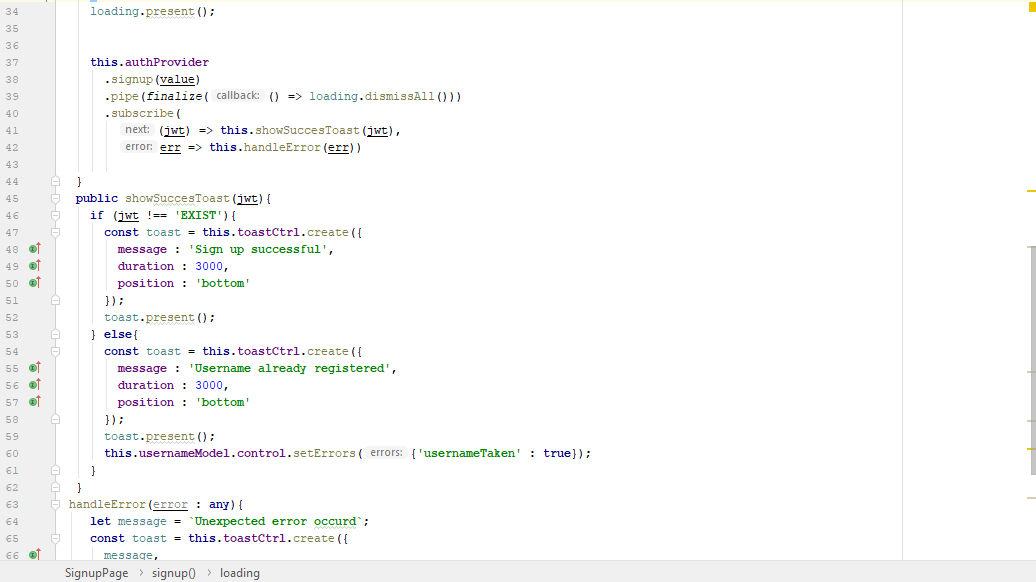
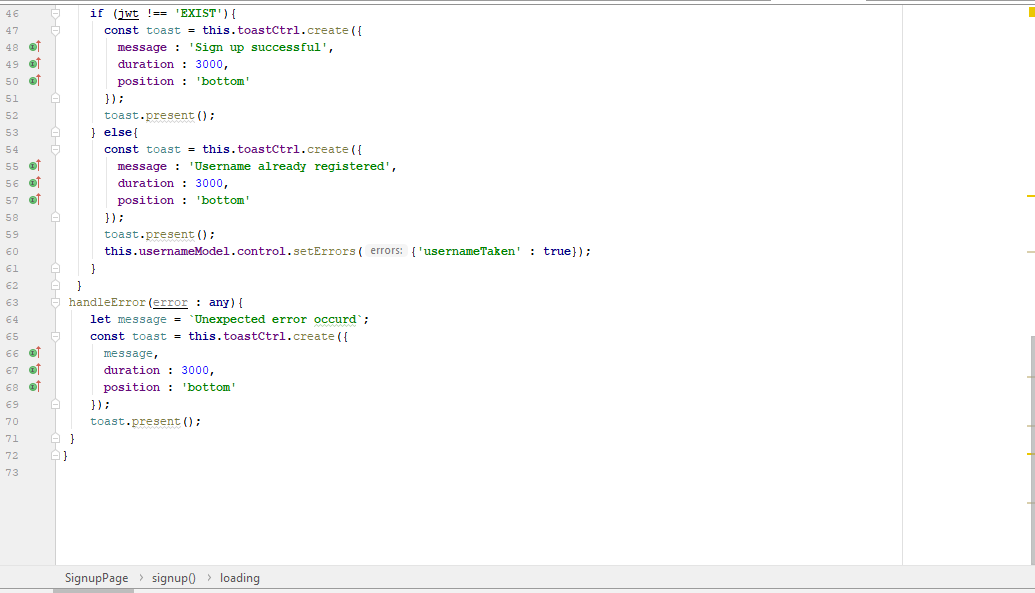
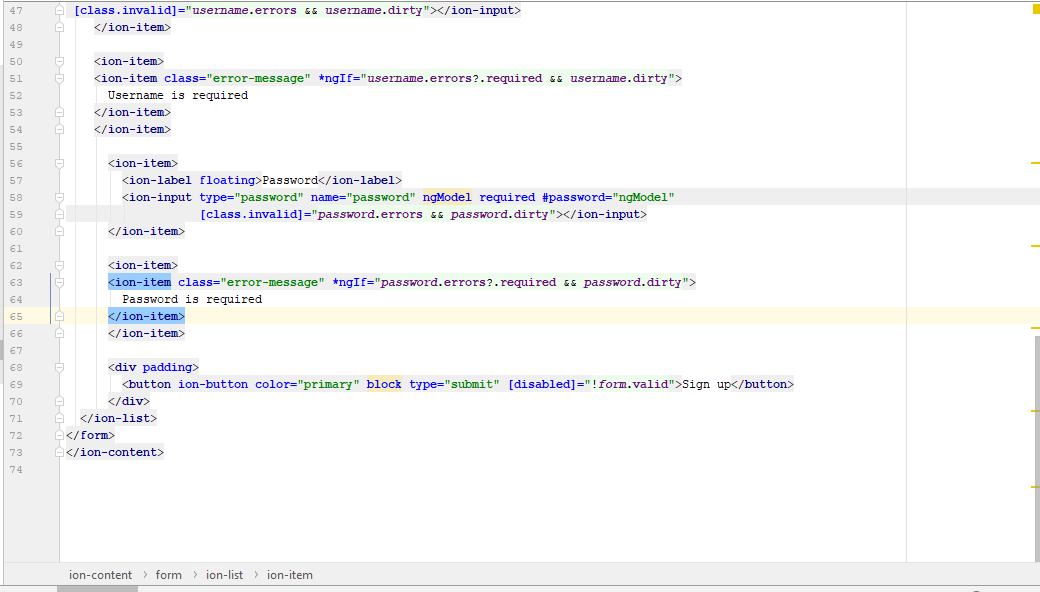
now it should be created login page and sign up page . type “generate page signup” command prompt on your IDE.  and generate login open signup.ts .it should be implemented like bellow

Screenshot (55)


Screenshot (56)

Screenshot (57)

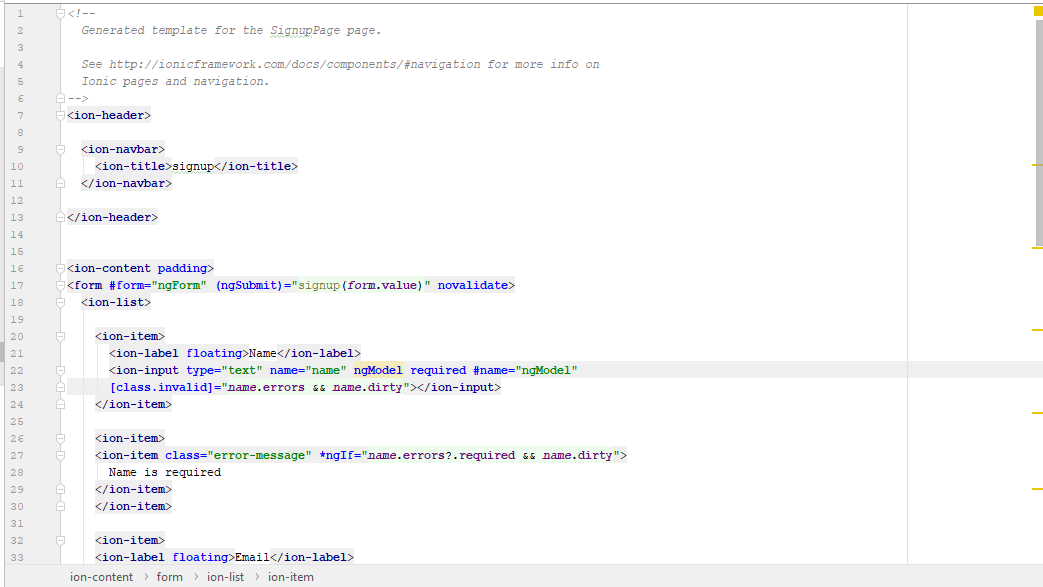
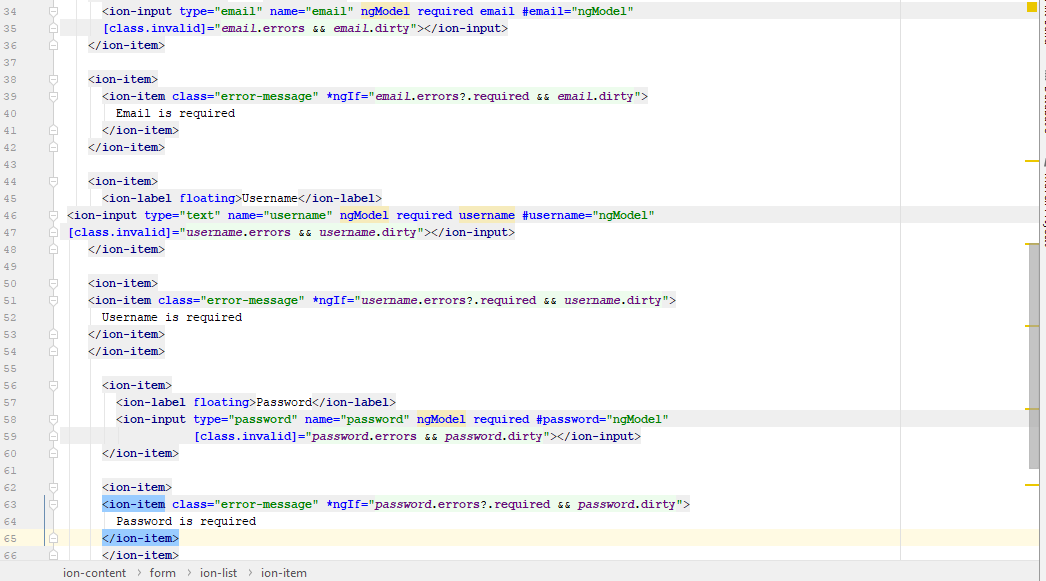
after it html page should be implemented like bellow

Screenshot (58)

Screenshot (59)

Screenshot (60)

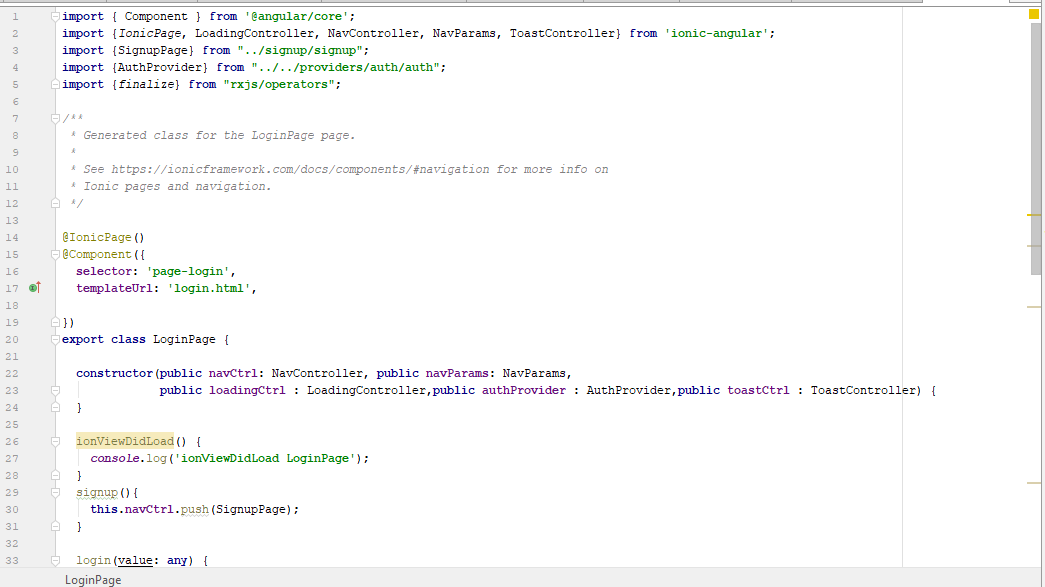
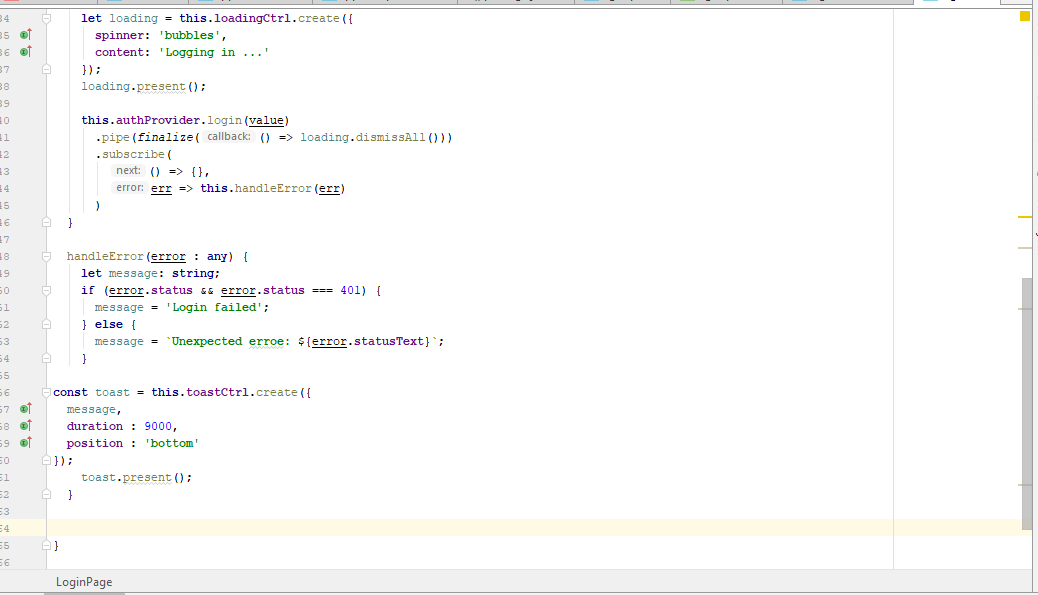
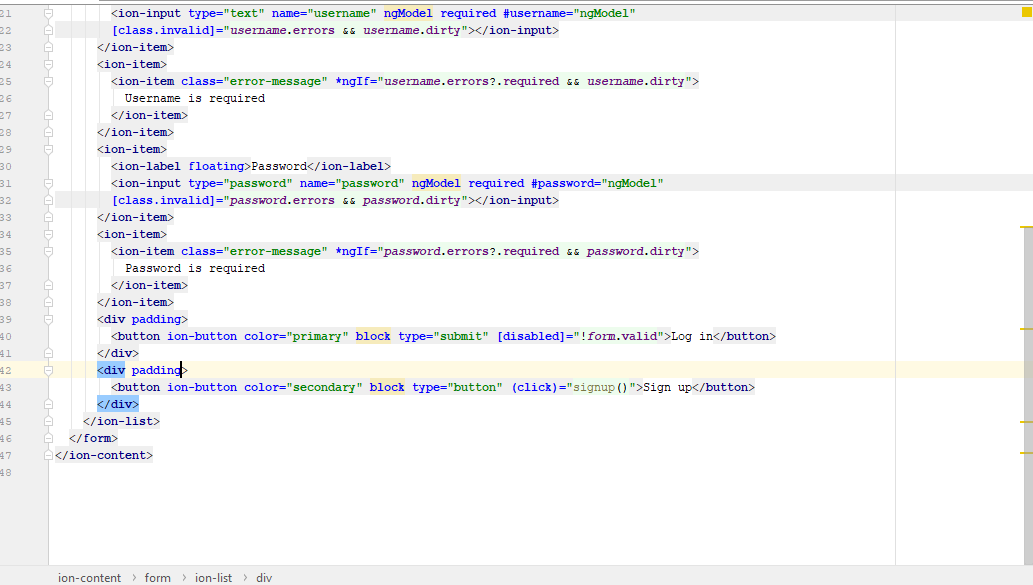
now it should be created login page and login page . type “generate page login” on command prompt  . open login.ts it should be implemented like bellow

Screenshot (61)

Screenshot (62)

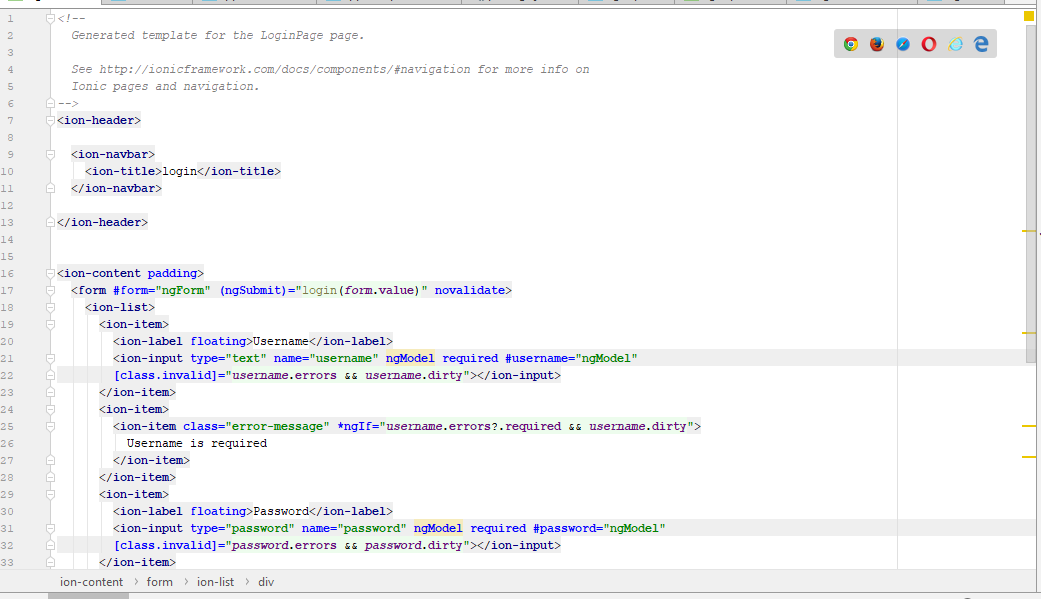
after it html page should be implemented like bellow

Screenshot (63)

Screenshot (64)

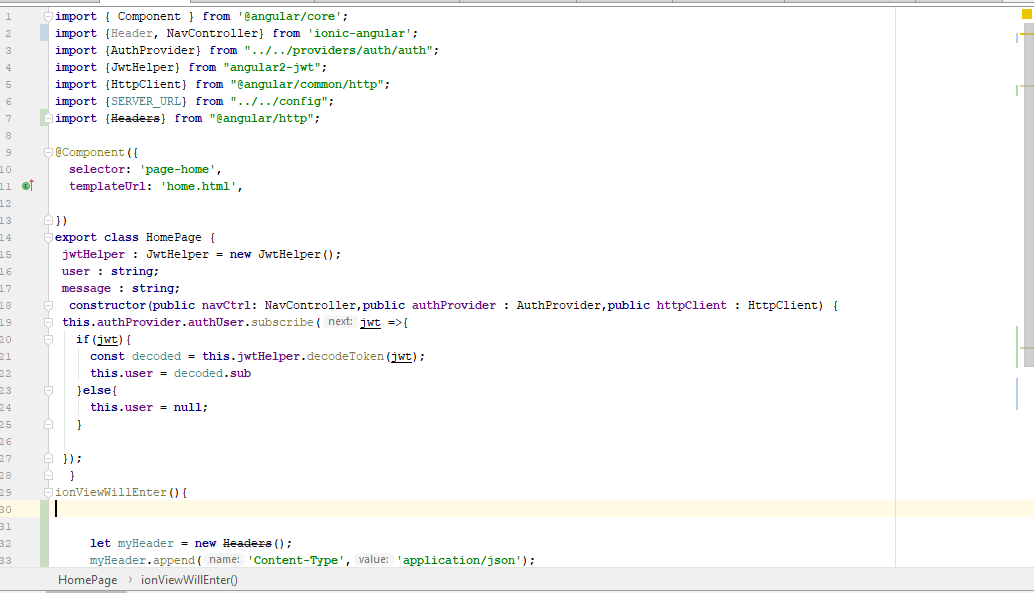
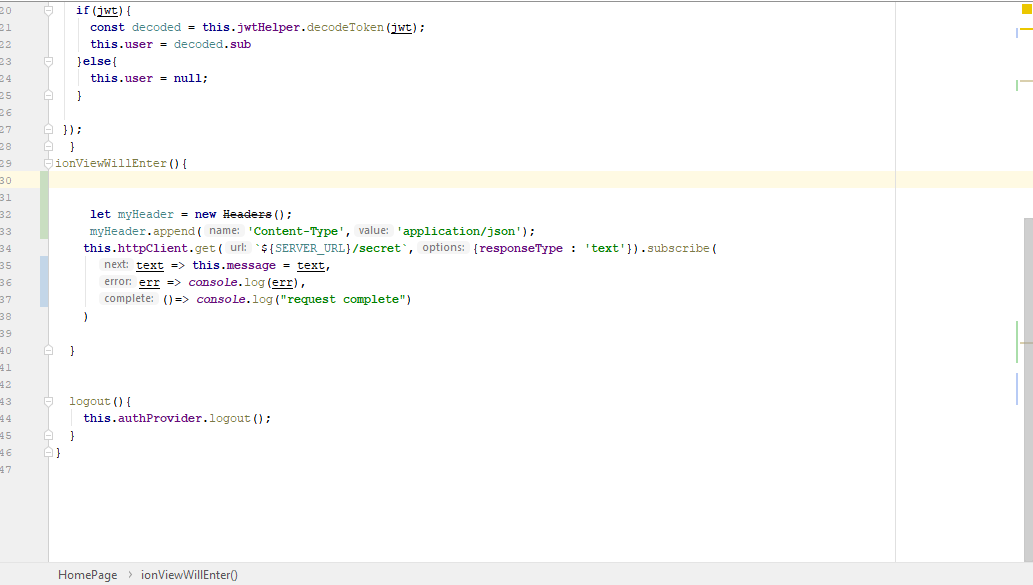
now it should be created Home page  . type “generate page home”  on command prompt. in your IDE.open home.ts it should be implemented like bellow

Screenshot (65)

Screenshot (66)

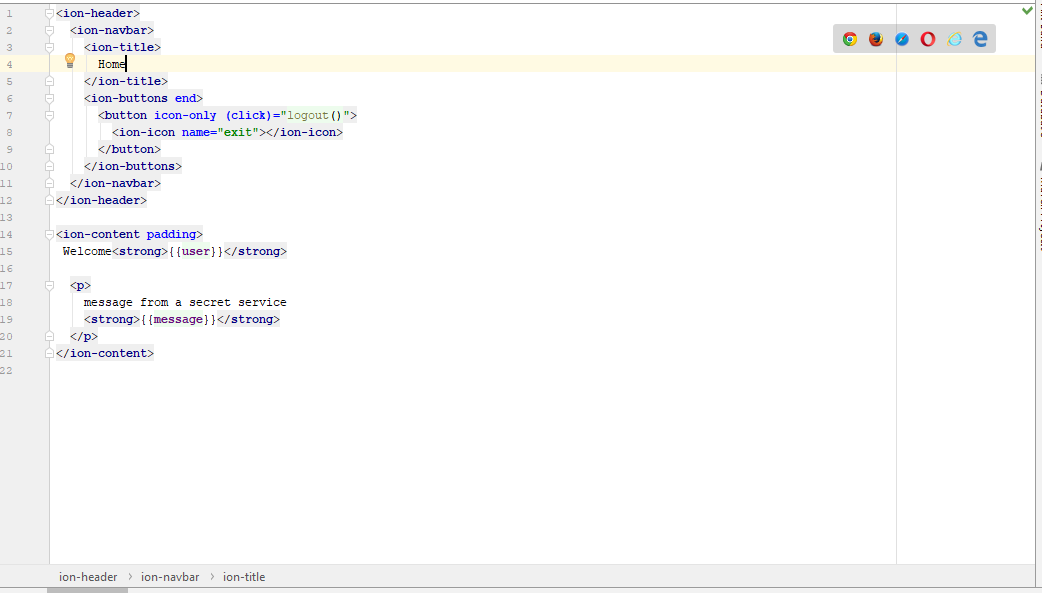
after it html page should be implemented like bellow

Screenshot (67)